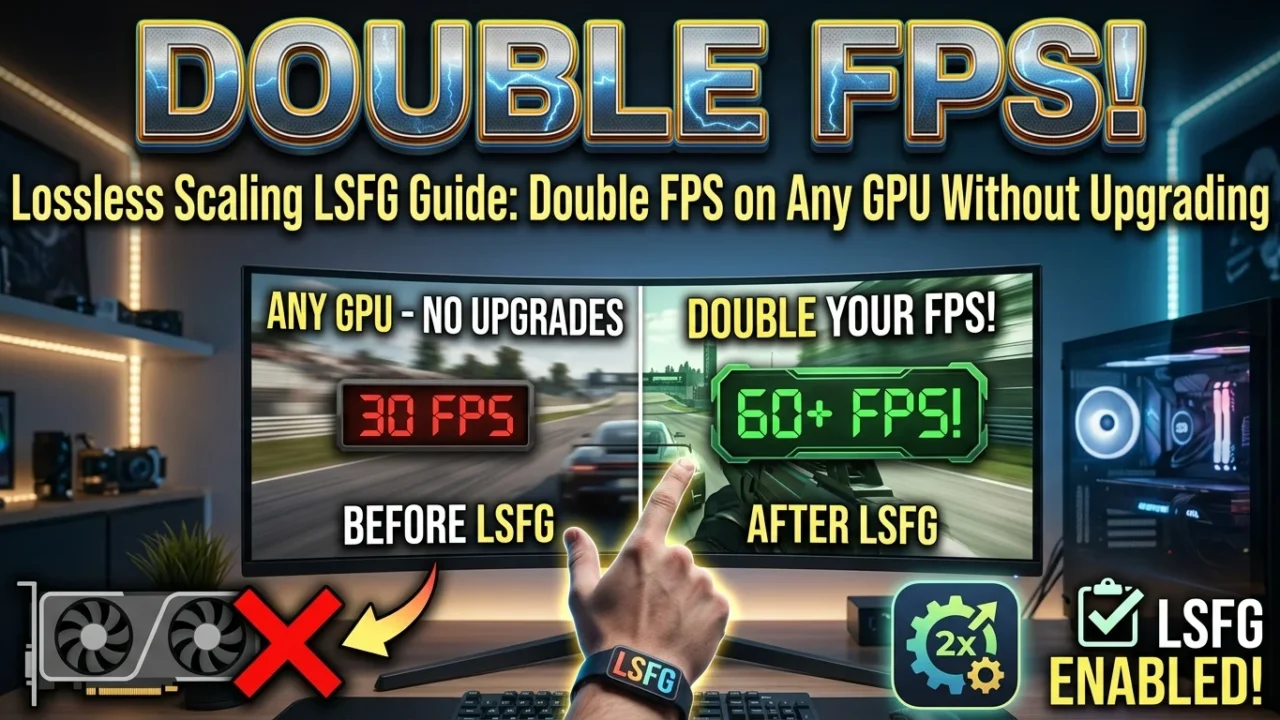
Lossless Scaling LSFG Guide
If you are struggling to run modern games smoothly, Lossless Scaling (LSFG) is easily the best $7 investment you can make on Steam. It forces frame generation onto almost any title on your PC—even older games, emulators, and indie titles that lack native DLSS or FSR support. Whether you are gaming on an aging GTX 1060, a mid-range AMD RX 6600, or a handheld like the Steam Deck, LSFG creates extra frames to smooth out your gameplay.
Generating frames outside of a game’s engine comes with trade-offs in input lag and visual artifacts if configured incorrectly. Here is how to dial in Lossless Scaling for clean motion without making your games feel floaty.
The Golden Rules Before Enabling Frame Generation
Frame generation needs clean data to work properly. If your game is constantly dropping frames or running in the wrong window mode, LSFG will produce noticeable ghosting and camera judder.
-
Switch to Borderless Windowed Mode: LSFG works by capturing your display at the Windows OS level. If your game runs in Exclusive Fullscreen, the tool cannot hook into the window.
-
Lock Your Base Frame Rate: Never leave your frame rate uncapped. Use RivaTuner Statistics Server (RTSS), NVIDIA Control Panel, or AMD Software to lock your native game FPS to a flat, unshakeable baseline (e.g., 30, 40, or 60 FPS).
-
Match Your Refresh Rate: Set your locked base frame rate to a clean divisor of your monitor refresh rate. For instance, locking to 48 FPS on a 144Hz panel or 60 FPS on a 120Hz/240Hz screen prevents frame pacing tears.
Optimal Lossless Scaling App Settings
Open Lossless Scaling on your desktop and configure these core options under the main profile tab:
| Setting Option | Recommended Value | Practical Advice |
| Scaling Type | Off | Keep this off if you only want frame generation at your display’s native resolution. |
| Frame Generation | LSFG 3.1 | Select the latest version for the cleanest motion vectors. |
| Mode | Fixed 2X | Doubles your FPS (e.g., 60 base FPS becomes 120 output FPS). Avoid 3X/4X unless your base FPS is already 60+. |
| Performance Mode | Enabled | Cuts GPU processing overhead by roughly half with minimal loss in image clarity. |
| Flow Scale | 50% to 70% | Lowering this reduces visual warping around fast-moving character models and HUD elements. |
| Capture API | DXGI | Offers the lowest latency on modern Windows builds. Fall back to WGC only if the screen stays black. |
How to Activate LSFG In-Game
-
Launch Lossless Scaling and minimize it to your system tray.
-
Boot your game, navigate to the graphics settings, and select Borderless Windowed.
-
Set your in-game framerate cap (or use RTSS) to your chosen baseline (e.g., 60 FPS).
-
Click inside the game window and press the hotkey shortcut (Ctrl + Alt + S).
-
Leave your mouse still for 2–3 seconds while the countdown timer initializes. The top-left corner will display your updated base-to-generated frame rate counter (e.g.,
60/120).
Tackling Latency and Performance Drops
Because frame generation predicts motion between rendered frames, it naturally adds a small amount of latency. If the controls feel sluggish or your GPU hits 100% load, apply these fixes:
-
Reduce In-Game Settings Slightly: LSFG requires roughly 5% to 10% of your GPU’s compute power to generate frames. If your GPU is maxed out at 99% native usage, LSFG will stutter. Lower shadow or reflection settings to give your GPU breathing room.
-
Enable Low Latency Drivers: Turn on NVIDIA Reflex or AMD Anti-Lag in your GPU driver control panel to minimize control delay.
-
Use a Gamepad for Low Base Framerates: If your base frame rate is locked at 30 or 40 FPS, mouse movements can feel noticeably heavy. Playing with an analog controller smooths out camera pans and hides latency much better than a high-DPI mouse.
-
Skip Competitive Shooters: Do not use frame generation in fast tactical titles like CS2, Valorant, or Apex Legends. The input delay penalty is not worth the visual smoothness in twitch-reflex games.
For single-player RPGs, racing titles, and demanding AAA games, capping your native framerate at a stable 45 or 60 FPS and letting LSFG bump you up to 90 or 120 FPS provides a massive visual upgrade without needing a costly GPU replacement.